Correspondence automation Outgoing correspondence
Automated outgoing correspondence
LogiClaim sends the right letter, email or SMS at every stage, chases until there is a response, and records every message on the claim file.
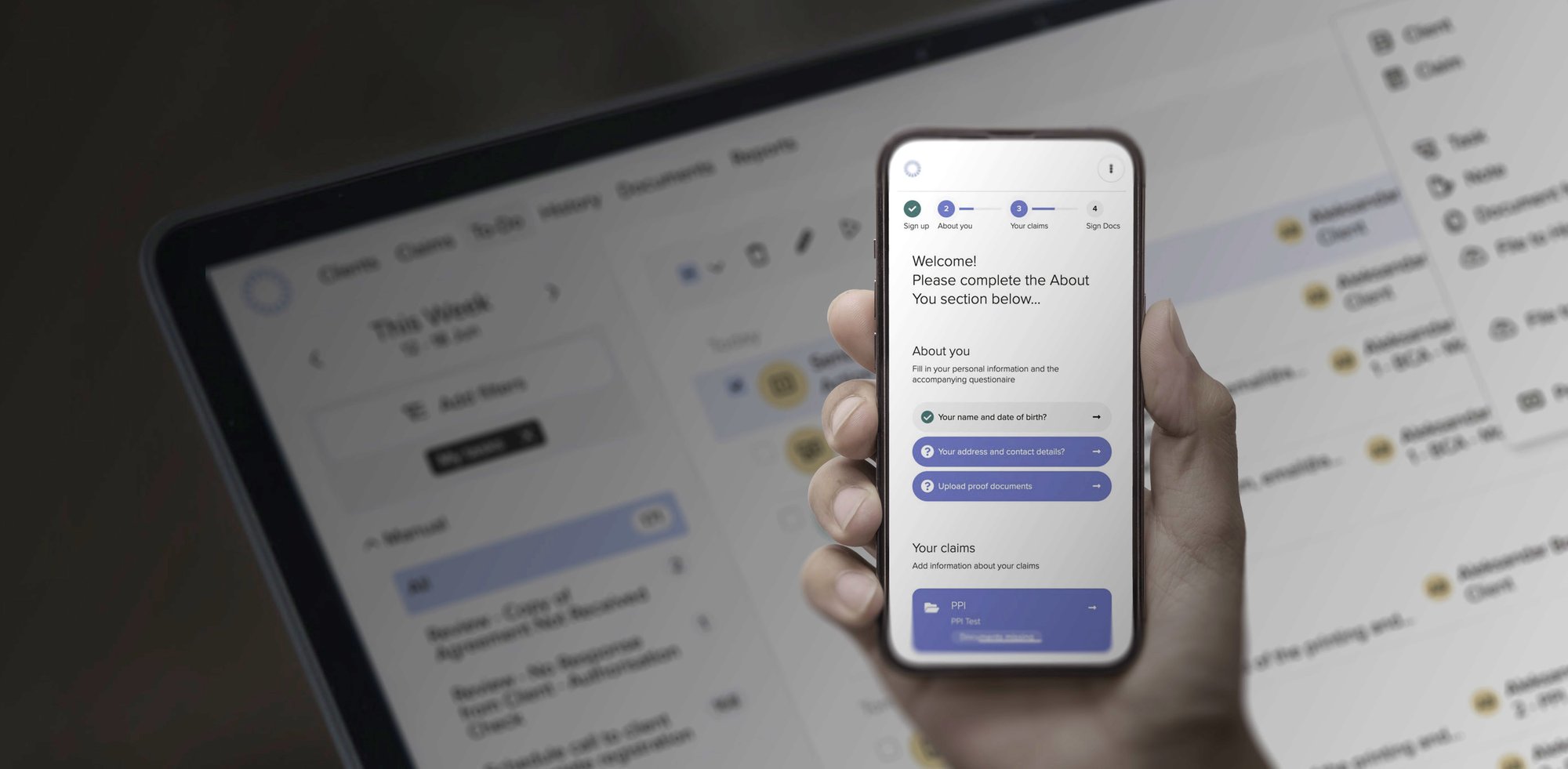
Sent automatically
Each message is automatically sent when due, not by someone remembering to send it.
Written from your templates
Content comes from your templates and the live data on each claim.
On the record
Every message is recorded on the claim file.
In practice
Almost no need to write or send messages by hand
LogiClaim creates bespoke letters, emails and SMS messages for you, with content based on the status and information held on each claim. They go out directly from the system, or via API, as the workflow reaches each stage.
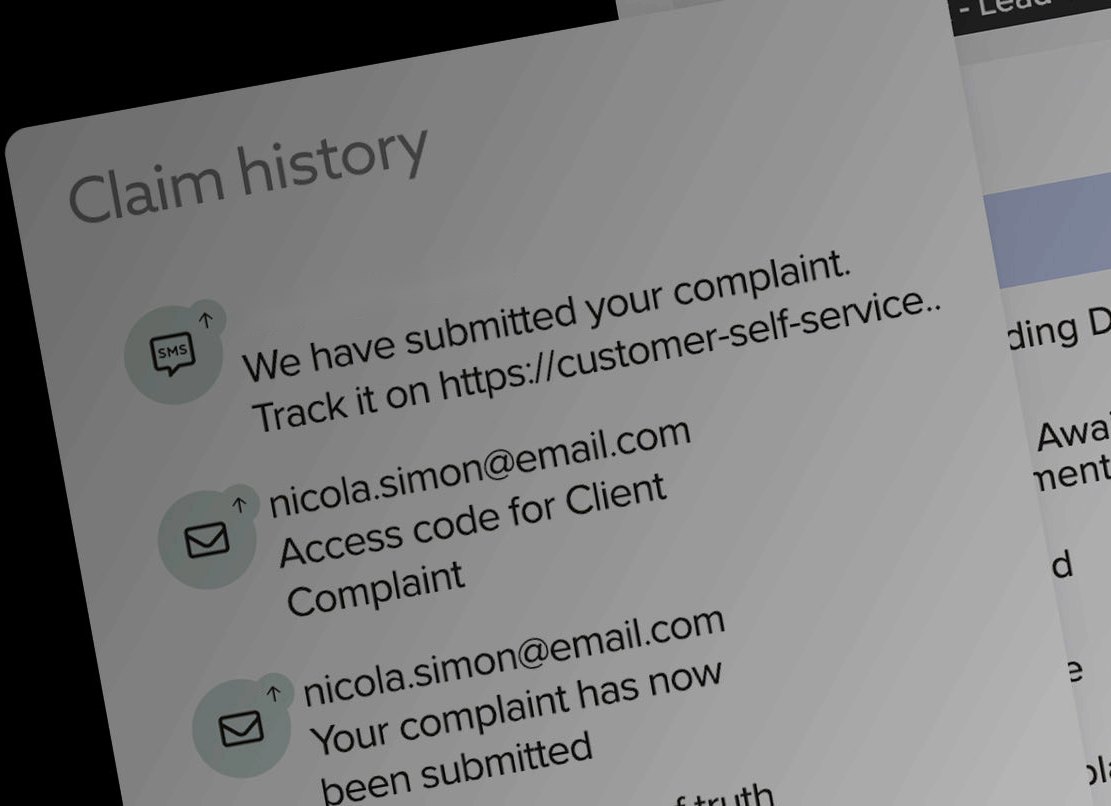
Take a complaint being submitted. The client gets an SMS telling them, with a link to track it in the client portal, and an email with their access code. Each message appears in the claim history the moment it is sent.
Your team sees what went out, to whom and when, without anyone having written it.
Through the life of a claim
What goes out, stage by stage
Stage 1
Sign-up
Client sign-up messages as a new client comes on board, with access to the client portal.
EmailSMSStage 2
Complaint
Bespoke letters of complaint written from your templates and the claim data, and the client is told once it is submitted.
Letter of complaintClient updateSub-stageChasing the lender for a responseIf the lender misses the deadline you set, the claim shows the response as overdue and chasers go out until it replies.Stage 3
Lender response
When the lender replies, the incoming automation reads it and the workflow sends what comes next, such as an update to the client.
Client updateNext stepStage 4
Escalation
FOS and FSCS escalation documents when a complaint needs to go further, and follow-ups to clients and third parties.
FOSFSCSFollow-upStage 5
Payment
Payment chasers to clients when a payment is due.
Payment chaser
Templates
Your wording, filled in from the claim
Set up personalised templates for letters, emails and SMS. Each message is filled in with the names, references and details held on the claim, so it is accurate without anyone retyping it.
LogiClaim comes with a pre-configured PCP claims workflow and document templates, so you can start from those and adjust them to your own wording.
Because the content comes from the claim, the same template works for one claim or ten thousand.
Your template
Hi client first name, we have submitted your complaint. Track it at portal link
Sent by SMS
Hi Sam, we have submitted your complaint. Track it at customer-self-service…
Illustration. Your templates use your own wording.
How it works
From trigger to sent message
Automated: no one writes or sends it
Template selected
Your team's template for that stage and that recipient, chosen on your rules.
Details filled in
Names, references and claim details come from live claim data.
Sent
By email or SMS, or generated as a letter, including bulk runs to lenders.
- Internal claim status updated
- Client-facing status updated
- Next chaser scheduled
- Message recorded on the claim file
Chasers
Follow-ups that keep going until there is an answer
Once a message is sent, LogiClaim schedules the reminders and chasers for you. They run at the intervals you set and continue until a response is received or the task is completed.
The claim status shows what is being waited on, so an overdue DSAR or complaint response is chased without anyone keeping a list.
Client updates
Clients stay in the loop without your team writing to them
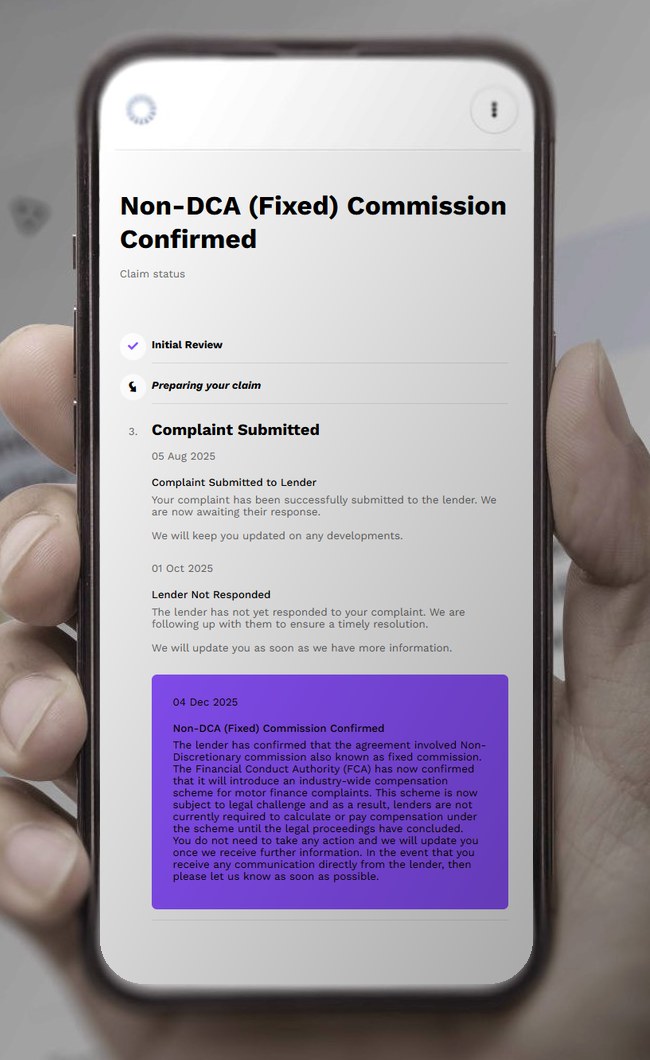
Automatically generated progress emails and SMS messages keep each client up to date as their claim moves on, and the client portal gives them a live feed of where it stands.
Sign-up happens there too. The client completes their details, adds their claims and signs their documents on their phone, and the messages that follow are sent from the same workflow.
See the client self service portal →Manual when you need it
Automation does not take the pen away
You can still work manually whenever a matter calls for it, and anything sent by hand is recorded on the claim file in the same way.
Documents in one click
Create any document from a precedent template when a matter needs a personal touch.
Manual chasers
Schedule a chaser yourself and it appears in the right person's task list when it is due.
Complex matters
Handle detailed queries from a defendant, the Ombudsman or the FSCS yourself, with the claim history in front of you.
Outgoing and incoming, one workflow
When the reply comes back, the next message is ready
Lender replies are linked to the claim and categorised on your rules, and the workflow sends what comes next.
FAQ
Questions about outgoing correspondence
Which channels does LogiClaim send on?
Email and SMS, and letters generated as documents wherever post is still needed. Messages can go out directly from LogiClaim or be triggered via API.
Can we use our own wording?
Yes. You set up personalised templates for letters, emails and SMS, and each message is filled in from the data on the claim. A pre-configured PCP workflow and document templates are there to start from.
When do chasers stop?
Chasers continue until a response is received or the task is completed. You set the intervals.
Can staff still send things by hand?
Yes. Anyone can create a document from a precedent template in one click or schedule a manual chaser, which appears in the right person's task list.
Reach out
